Using DSC Digital Signature Certificate comes in a USB dongle which is issued to all the DDOs in Haryana State. For online submission of pension revision case, DDOs has to attach his/her digital signature on the Annexure-2 / Annexure-3 (as the case may be) Step-1 Scan the Annexure-2/Annexure-3 of all the cases, you want to submit online to the office of the Principal Accountant General (A&E) Haryana, Chandigarh. Save all the scanned files on your computer. It is advisable that scanned file should be renamed according to the PPO number of the pensioner. A screen by screen user manual is prepared for your reference. In this example we will attach the digital signature on Annexure-2 of Sh. Rajinder Partap Chauhan (holder of PPO No. 133696-S/HR
Tuesday, October 12, 2021

Sunday, September 19, 2021
How to solve emsigner error on google or chrome in 2021?
when we try to apply dsc over google or chrome we face error from emsigner that it should restarted or version old then you should follow these steps to avoid the same error.
Friday, August 20, 2021
How To Register DSC On New Income Tax Portal? A Step-by-step Process
How To Register DSC On New Income Tax Portal? A Step-by-step Process
Steps to register DSC on new IT portal
- Step 1 - Taxpayers will have to visit the official website of the e-filing portal - www.incometax.gov.in
Register Digital Signature Certificate User Manual
Register Digital Signature Certificate User Manual
The Register Digital Signature Certificate (DSC) service is available to all registered users of the e-Filing portal. This service enables registered users to perform the following:
Register DSC
Thursday, August 19, 2021
E-filing 2.0: A step-by-step guide to re-register digital signature certificate on new e-filing portal
E-filing 2.0: A step-by-step guide to re-register digital signature certificate on new e-filing portal
How to re-register digital signature certificate on new e-filing portal
Step 1: Visit the new e-filing portal www.incometax.gov.in.
Register Digital Signature Certificate/How to Register Digital Signature Certificate on New Income Tax Portal
Register Digital Signature Certificate/How to Register Digital Signature Certificate on New Income Tax Portal
DSC Registration in new Income Tax portal
DSC Registration in new Income Tax portal
New Income Tax portal was launched on 07th June 2021, now we are required to register Digital Signature Certificate (DSC) in new portal even though it was registered earlier.
Thursday, August 5, 2021
Digital Signature Certificate for Income Tax
Digital Signature Certificate for Income Tax
Easier e-Filing of Income Tax with Digital Signature Certificate.
A Digital Signature Certificate lets you file your Tax Returns easier and more secure. According to revised provisions under section 44AB of IT Act "E-Filing is mandatory for all the individuals/professionals having an annual gross receipt of INR 25 Lakhs and above, and for business houses with annual turnover of INR 1 Crore and above.
Get your DSC for Income Tax
Digital Signature Certificate and e-Filing of Income Taxes
Use of a Digital Signature Certificate is mandatory for e-filing by a certain section of businesses, families, and individuals. For individuals businesses not covered by the latest mandate, a Digital Signature Certificate assures greater convenience while filing tax returns, and greater security during any electronic transactions.
Click here to download your Digital Signature Certificate
Why do I need a Digital Signature Certificate?
A Digital Signature Certificate authenticates your identity electronically. It also provides you with a high level of security for your online transactions by ensuring absolute privacy of the information exchanged using a digital certificate. You can use certificates to encrypt information such that only the intended recipient can read it. You can digitally sign information to assure the recipient that it has not been changed in transit, and also verify your identity as the sender of the message.
Click here to get your Digital Signature Certificate
Where can I use Digital Signature Certificates?
You can use Digital Signature Certificates for the following:
For secure email and web-based transactions, or to identify other participants of web-based transactions.
To prove ownership of a domain name and establish SSL/ TLS encrypted secured sessions between your website and the user for web based transactions.
As a developer, for proving authorship of a code and retaining integrity of the distributed software programs.
For signing web forms, e-tendering documents, filing income tax returns, to access membership-based websites automatically without entering a user name and password etc.
Click here if you have more questions about Digital Signature Certificates.
Digital Signature Certificate for MCA (ROC)
Digital Signature Certificate for MCA (ROC)
Digital Signature Certificate for smoother transactions with the Ministry of Corporate Affairs or Registrar of Companies.
A Digital Signature Certificate helps make light work of various transactions related to the Ministry of Corporate Affairs, or Registrar of Companies. In addition to saving time, a Digital Signature Certificate also helps secure data. Read on to know more about the benefits of buying a Digital Signature Certificate from eMudhra.
Get your DSC for MCA (ROC)
Digital Signature Certificate and Ministry of Corporate Affairss
Any organization or firm can apply for a Digital Signature Certificate (DSC) for transactions involving the Ministry of Corporate Affairs. However, business houses that exceed revenues of over INR 60 lakhs have to mandatorily use a Digital Signature Certificate while filing returns. Under the provisions of law, a Digital Signature is considered as a legally admissible instruments.
There are various types of Digital Signature Certificates that cater to specific needs. While eFiling on the Ministry of Corporate Affairs portal, a Digital Signature Certificate of Class 2 and Class 3 category is required.
A Class 2 Digital Signature Certificate is available for download after verification based on a trusted and pre-verified database.
A Class 3 Digital Signature Certificate, on the other hand, is of a higher level as it is issued only after the registrant’s identity verification has been done by a Registration Authority.
Digital Signature Certificate for E-Tender
Digital Signature Certificate for E-Tender
eTendering made possible with Digital Signature Certificate.
A Digital Signature Certificate (DSC) is essential for companies and organizations that take part or intend to take part in eTendering processes on various Government sites. Besides enabling eTendering which is extremely convenient and transparent, a Digital Signature Certificate also ensures greater security in other online transactions.
Get your DSC for e-Tender
Digital Signature Certificate and e-Tendering
e-Procurement facilitates,
integrates, and streamlines procurement processes. From buyer to supplier and
even back. Approved under the Information Technology Act, and with legal
status, a Digital Signature Certificate is essential for all e-Procurement
processes.
Applying for a government tender online has many advantages. Since documents
are uploaded to a central site, acknowledgements and receipts are provided
immediately. Which is not the case with paper documents that need to be scanned
and verified before being processed.
e-Procurement has gained significant popularity and acceptance as it brings
greater transparency to the whole system. Among other benefits, it helps buyers
and bidders overcome geographical limitations, reduce procurement cycles, and
overall helps keep pace with present technology.
Any organisation that is looking to apply for any Government eTender needs to
have a Class 3 Digital Signature Certificate registered in the name of a
representative who is authorised to submit online offers for e-Tendering
applications.
Click here to get your Digital Signature Certificate
Why do I need a Digital Signature Certificate?
A Digital Signature Certificate authenticates your identity electronically. It also provides you with a high level of security for your online transactions by ensuring absolute privacy of the information exchanged using a digital certificate. You can use certificates to encrypt information such that only the intended recipient can read it. You can digitally sign information to assure the recipient that it has not been changed in transit, and also verify your identity as the sender of the message.
Where can I use Digital Signature Certificates?
You can use Digital Signature Certificates for the following:
For secure email and web-based transactions, or to identify other participants of web-based transactions.
To prove ownership of a domain name and establish SSL/ TLS encrypted secured sessions between your website and the user for web based transactions.
As a developer, for proving authorship of a code and retaining integrity of the distributed software programs.
For signing web forms, e-tendering documents, filing income tax returns, to access membership-based websites automatically without entering a user name and password etc.
Click here if you have more questions about Digital Signature Certificates.
Friday, July 23, 2021
DSC Registration for Companies
DSC Registration for Companies
The new Income Tax portal introduced by the Ministry of Finance from June 07, 2021 has been subject to various glitches since it’s inception and the stakeholders are facing problem on regular basis. Also, the proceedings under Income Tax are now managed electronically and the same has been made accessible at the new portal under E-proceedings Tab at the recently by the Income Tax department. However, the submission of response under E-proceedings tab now mandatorily require DSC of the authorized person registered at the portal and the stakeholders have been facing the issue of registering the same at the portal for companies.
Read more-
Emsigner Error-संदेशवाहक त्रुटि
It may be noted that the same can now be done by logging to the personal account of the authorized person at the portal and under My Profile select Register DSC option.
You may note that before proceeding to do so, please install the Emsigner Utility from the Income Tax portal (https://www.incometax.gov.in/iec/foportal/downloads/dsc-management-utility)
Once the DSC is registered by the authorized person at the Income Tax portal, now the login shall be done using the company credentials. Now under My Profile, select Key Person Details and add the person using the PAN of the person (DSC status will be auto populated as Yes) and providing basic details as the designation, Mobile Number, Email. Select the option to E-verify and in case you want the person to be Principal contact as well the same should be selected as yes and submitted.
It may be noted in case the person is already registered as Key Person however, the DSC status is not updating the above process may be followed by first removing the person and then adding him/ her back.
Once the Key person details are updated, now you may go to E-proceedings tab to furnish the response using the DSC of the registered person. For any further assistance in this regard, you may consider reaching out to me
Read more-failed to establish connection
Https://127.0.0.1:1585 Failed To Establish Connection To The Server
Sunday, June 6, 2021
Easy to Solve Error of emSigner While GST Return Filing with DSC
It is worth mentioning that DSC stands for Digital Signature Certificate and it is mandatory for Private Limited Company; Public Limited Company; Unlimited Company; Limited Liability Partnership (LLP); Foreign Company; Foreign Limited Liability Partnership and Public Sector Undertaking.
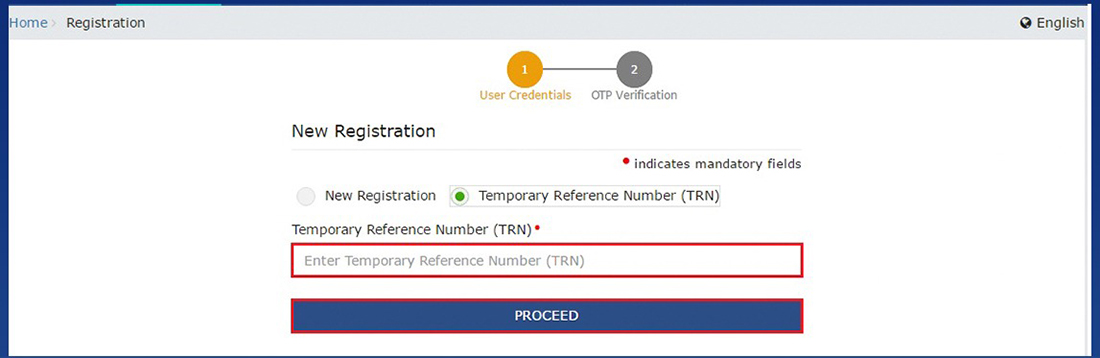
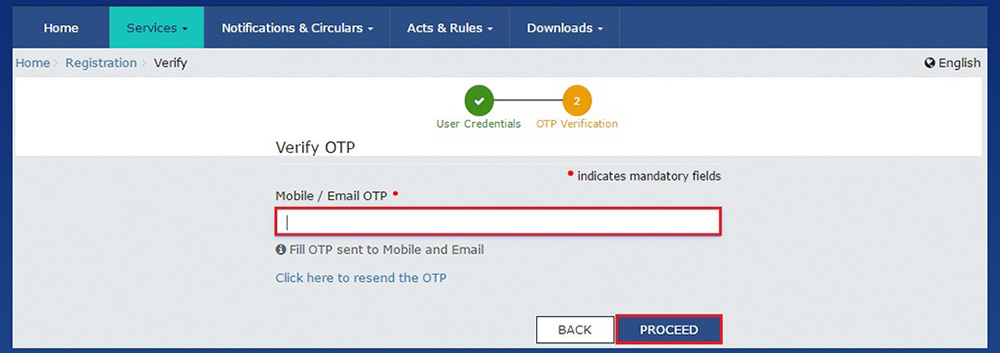
The following solution will help you to fix emsigner error or DSC error in GST Portal.
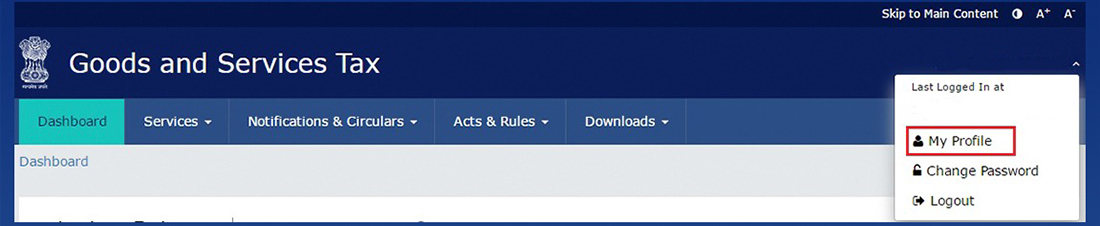
Please make sure that you have the latest version of Internet Explorer and Java installed, then proceed to register or update your DSC in the GST portal. It is because to update your DSC on the GST portal Latest version of both is required.
It is worth mentioning that to use your DSC on the GST portal you have to add the person as an authorized signatory to your GST registration, then you have to register / update your DSC on the GST portal.
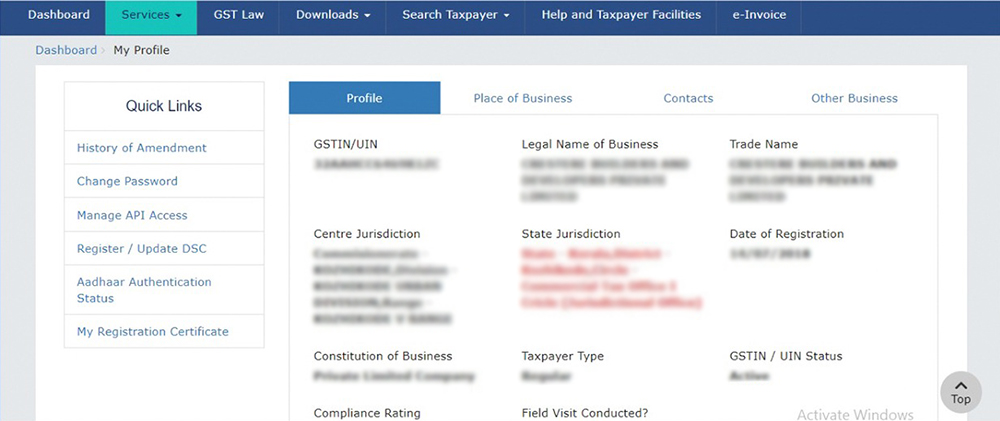

That is, you can now digitally sign GST documents using your digital signature certificate.
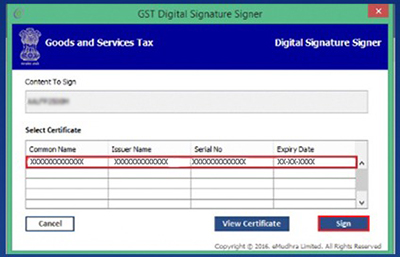

If you encounter DSC error “sorry digital signature certificate missing please plugin the token” when you try to sign GST return with DSC stick. Then this error occurs when you are using the DSC stick for the first time on your computer, and you have to install a dedicated setup for the stick or pen drive.
Https://127.0.0.1:1585 Failed To Establish Connection To The Server
Https://127.0.0.1:1585 Failed To Establish Connection To The Server
If you come across the error “Failed to establish connection to the server. kindly restart the emsigner” while signing your GST return or application with DSC, then you may try the following. This is an emsigner error you get if you are filing your GSTR return with DSC (Digital Signature Certificate). Similarly, you can also resolve the https://127.0.0.1:1585 error from this solution.
However, if you are a regular GST return filer and if you see the error again in next month, then you may directly go to point no. 5 to check if the
The above error occurs because earlier the emsigner was using the port “1645” (https://127.0 0.1:1645). But now the new version of emsigner is using the port “1585” (https://127.0.0.1:1585), thus raising the said problem.
Solution for Internet Explorer
2. Update your Java to the latest version by opening this URL in Internet Explorer.
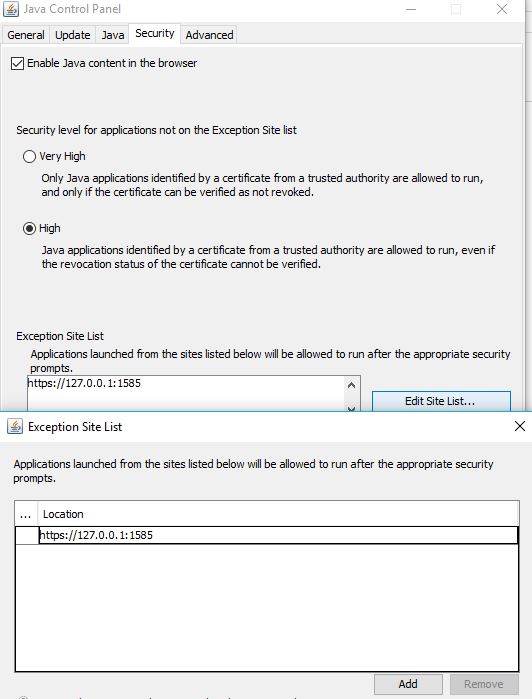
3. After java installation, go to “Control Panel” and open Java settings. Now click on the “Security” tab and click on
4. Edit site list and add https://127.0.0.1:1585 on that list.
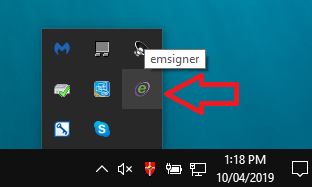
5. Now download and install the latest version of emsigner for GST from here. Please uninstall the previously installed emsigner for traces/MCA if any. You must install emsigner for GST only for GST-related signing. If you have already installed emsigner for GST, then ensure that it is running mode. you can check its status by clicking on the right-hand side below on your computer screen as shown below. Your emsigner is running, If you see below icon gear.
6. After installing and updating the above-mentioned applications, please restart your computer.
7. Now right click on the emsigner application and click “Run as administrator”.
Related: Download Emsigner for GST
How to register DSC on GST portal?
8. Now proceed to register or update your DSC in the GST portal. Please note that you must update your DSC on the GST Portal after doing the above procedure shown below. kindly ensure that you are using the PAN-based DSC because the aadhar based DSC will not work for GST.
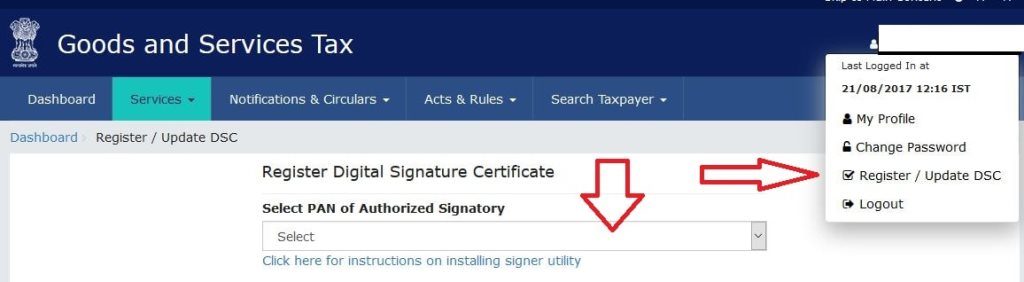
GSTN’s Official Video to Register DSC on GST portal
9. Please note that in order to use your DSC on the GST portal you must add the person as an authorized signatory in your GST registration. Secondly, you must register/update your DSC on the GST portal.
10. That’s it!. Now you can use your Digital Signature Certificate to sign the GST documents digitally.
Solution For Mozilla Firefox
- Start following the steps from Step No. 2 to Step No. 7 for firefox as above.
- Insert the valid DSC token in the USB drive >> Ensure emsigner is running (see above point no. 5).
- Open Mozilla firefox >> Go to Tools >> Options >> Click on Privacy & Security Tab.
- Scroll down to Security and ensure the below options are selected.
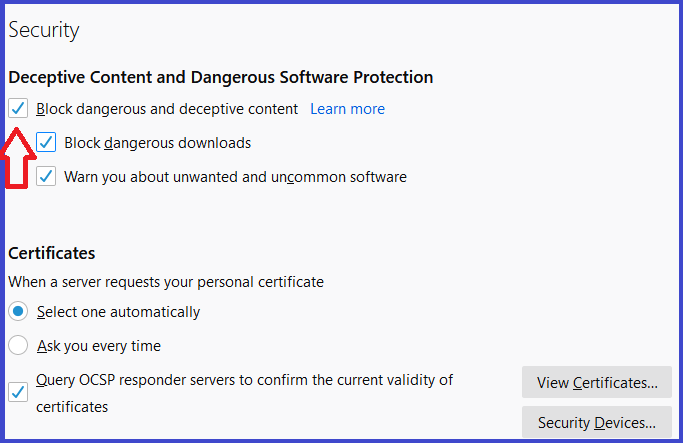
5. Type in browser https://127.0.0.1:1585 and hit enter > you will see below error message.
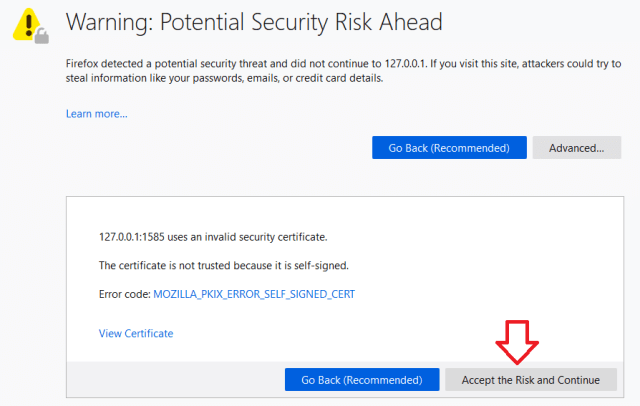 6. Click on advance. Click on Accept the Risk and Continue button. After clicking this option you may get an error or it will search for this address but that should not be a problem. wait for 15 seconds & close the tab.
7. If you do not see the above warning message press CTL + Shift + Del key. Click to select Site Preferences and Press Clear Now button. Try again step no. 5 of this section.
8. Try signing your return with digital signature now.
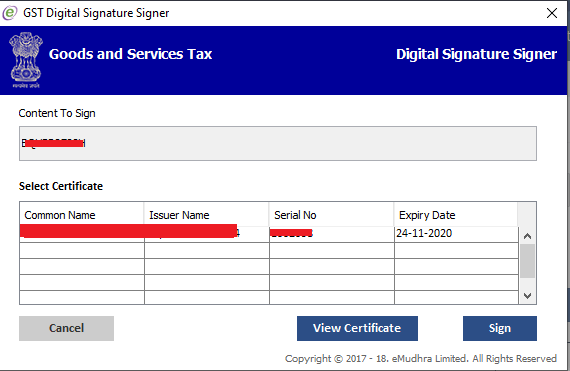
9. If you still do not see the above signing window and receives the error “Failed to Establish Connection to the Server. Kindly Restart the Emsigner” than Go to point no. 4 of this section. Remove the selected Tick mark of “Block dangerous and deceptive content” and try again.
We have tried the above procedure on windows 10. if you still encounter the same issue, please write in the comments and we will try to resolve the further issues. Keep Visiting GST India News for further updates on Failed to Establish Connection to the Server.
Resolve Google Chrome error
If you see this error “Failed to Establish Connection to the Server. Kindly Restart the Emsigner” in Google Chrome after performing the above steps, please follow the below steps:
1. Start following the steps from Step No. 2 to Step No. 7 above. If you encounter any error proceed for the below steps.
2. Type in browser https://127.0.0.1:1585 and hit enter > you will see below error message.
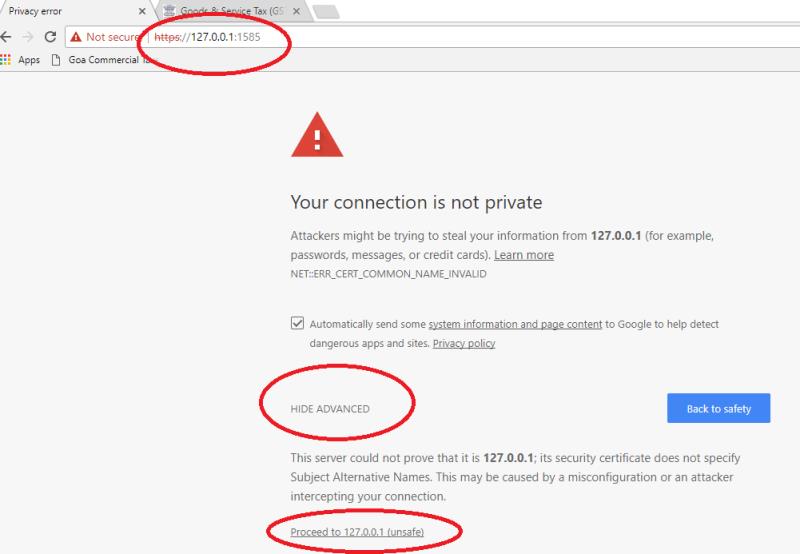
3. Click on advance
4. Click on proceed to 127.0.0.1 (unsafe). After clicking this option you may get an error or it will search for this address but that should not be a problem. wait for 15 seconds.
5. Unplug Digital Signature from your pc(if already plugged in) and plug it again.
6. Try signing your return with digital signature now.
Digital Signature Certificate(DSC) Installation
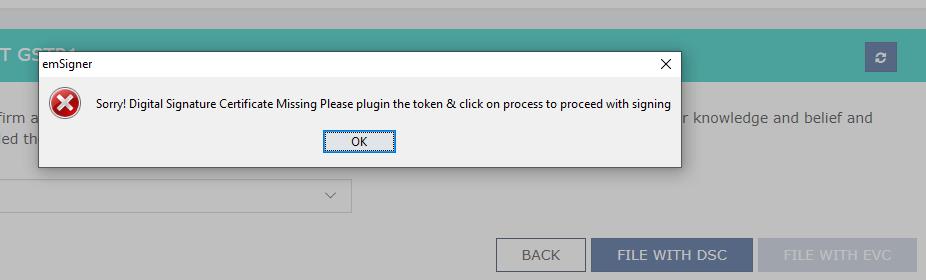
you may see DSC error”sorry digital signature certificate missing please plugin the token” when you try to sign GST return with DSC stick.
You will see this error if you are you are using a DSC stick for the first time on your computer. Therefore, you have to install setup for this stick/pen drive.
Follow the
- Plugin DSC into the computer
- Open My computer > Double the drive letter showing inserted DSC
- Open setup file as shown in below picture
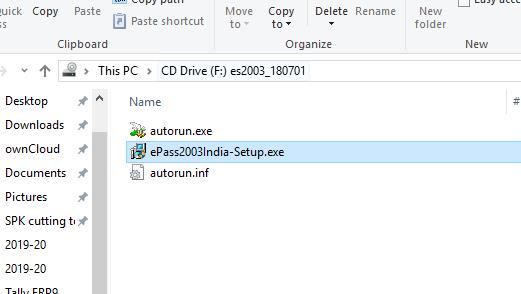
- Run setup > Choose CSP option as “Private CSP”
- Complete the installation
- Click yes when the
system asks you “do you want to install this certificate”
5 Steps to resolve https://127.0 0.1:1585 error
Here is the quick solution for https://127.0 0.1 1585 error. This works only if you have already installed emsigner for GST, configured your java, and installed your DSC software. If not installed follow the above steps before proceeding to this solution.
- Plugin the DSC token
- Ensure emsigner is running
- Open your browser >> Type https://127.0.0.1:1585 and hit enter
- Click on Advanced Tab
- Click on proceed to 127.0.0.1(unsafe)
- Wait for 10-15 seconds and Retry
- If you can’t see the above warning window, clear the site preferences by pressing the “CTRL + Shift + Del” key and try again.
Note: The above all steps works perfectly in google chrome. Please ensure that you type exactly as https://127.0.0.1:1585 in your browser. If you exclude even a slash or dot you will get an error. Also, kindly ensure to uninstall the previously installed emsigner for Traces/MCA. The emsigner software of traces/MCA will not work for GST.
Solve unable to connect Error
If you see the error “unable to connect to the installed emsigner. please close any other application running on following ports 1585, 2095, 2568, 2868, 4587 and restart your system, and try again” then you may try the following.

The error states that the emsigner needs any one of the above port to run the emsigner on your computer. It is possible that any existing software may be using the above ports. Also, it may be not configured properly in your Java setup. Check above step no. 4 and ensure that the address is entered exactly as shown.
Further, if that does not resolve the error; you must make anyone port free so that the emsigner can run. Hence you must find out which port is using the above port. Here is how to do it.
- Uninstall the emsigner software and re-install it again. Now check if this solves your issue. If not, follow the below steps to locate the engaged port.
- Navigate to Start menu → All Programs → Accessories → System Tools → Resource Monitor
- Click on >> Network Tab >> Listening port
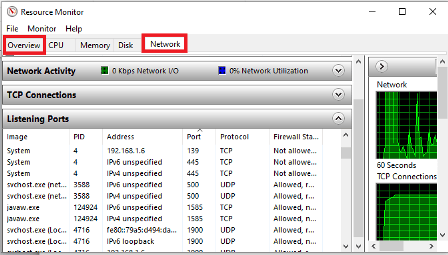
- Check if 1585 already exists in the port column. If exist, check the file name in the image column or note its PID number.
- Locate the file name/PID in the “overview tab”. Right-click on the file name and click End process
- Install/Restart the emsigner again and try.
Troubleshoot other DSC Related Errors
Here is the list of other DSC related errors, you may see while using the Digital Signature Certificate token.
Q . No. 1: Why do I get an error “DSC device not connected properly“?
Solution 1: Try re-inserting the DSC again.
Q. No. 2: I get an error ”The DSC you are trying to affix does not match with that of selected signatory“
Solution No. 2: Use the DSC token of the only authorized person registered on the GST portal. Also, check the serial number of DSC is PAN-based.
Q. No. 3: I see an Error “Invalid Signature Data“
Solution No. 3: Try again by restarting the emsigner. Similarly, if you recently converted your DSC from name-based to PAN-based, kindly check the provider. In this case, it is recommended to re-issue the DSC.
FAQ on https://127.0.0.1:1585 error
The GST portal displays’ this error when your digital signature can not establish a connection with the emsigner software.
You may get this error because your Digital Signature Certificate is expired and you must renew it or get a new one.
First, you need to add the person as Authorized signatory in GST Registration. Secondly, you need to register the DSC of the authorized person’s on the GST portal.
1. Download and Install Emsigner for GST
2. Ensure your Digital Signature Certificate(DSC) is valid
3. Register your DSC on GST Portal
4. Open emsigner from your desktop
5. Your DSC is activated on emsigner.
1. Install Java on your computer
2. Go to “Control Panel”
3. Open Java settings.
4. Click on the “Security” tab
5. click on Edit site list
6. Add desired port for e.g: https://127.0.0.1:1585 on that list.
Solution to Problems in Registering DSC & signing ITR
Solution to Problems in Registering DSC & signing ITR
Problem Description : I am not able to register my Digital Signature Certificate.
Corrective Action:This occurs due to the following reasons:
- Check if Java Runtime Environment 1.7 or above is installed in your PC.
- If Java Runtime Environment 1.7 or above is installed in your PC and still you are unable to register DSC to e-Filing application, this is because the Java is disabled. GO TO Internet Options –> Advanced –> Settings . Enable the chec-box for ‘Java’.
Problem Description : While trying to e-File Income Tax Return using Digital Signature Certificate, the ‘Select your .pfx file’ or ‘Select with your USB Token’ buttons are not displayed or are not clickable.
Corrective Action:This occurs due to the following reasons:
- Check if Java Runtime Environment 1.7 or above is installed in your PC.
- If Java Runtime Environment 1.7 or above is installed in your PC and still you are unable to register DSC to e-Filing application, this is because the Java is disabled. GO TO Internet Options –> Advanced –> Settings . Enable the check-box for ‘Java’.
Problem Description : An error appears on the screen: The E-mail ID in the Digital Signature Certificate does not match. Please retry.
Corrective Action:The registered e-mail ID in your e-Filing profile is not the same as in your Digital Signature Certificate. In case it is not the same, you can:
- GO TO ‘Profile Settings’ –> ‘Update contact details’ and change the e-mail ID or,
- Get a new Digital Signature certificate from your Certificate Provider which contains the same e-mail ID as mentioned in your profile.
Problem Description : An error appears on the screen: Invalid Digital Signature Certificate. Please contact your Certicate Provider.
Corrective Action:This could be due to the below reasons:
- Digital Signature Certificate is revoked.
- Digital Signature Certificate is not Level 2 or above. Only Level 2 or above Digital Certificates can be registered on e-Filing website.
- Digital Signature Certificate is not created in SHA-1 (Hash algorithm and 1024 bit RSA) or SHA-2 (Hash algorithm and 2048 bit RSA).
In this case, you should contact the Certificate Provider and get your Digital Signature Certificate checked.
Problem Description : An error appears on the screen: Validity of the Digital Signature Certificate has expired. Please update a valid Digital Signature Certificate.
Corrective Action:The validity period of the Digital Signature Certificate has ended. Attain a new Digital Signature Certificate from the Certified Service Providers and then register.
Problem Description : An error appears on the screen: Validity of the Digital Signature Certificate has not commenced. Please contact your Certificate Provider.
Corrective Action:The validity period of the Digital Signature Certiifcate has not yet started. A Digital Certificate cannot be registered if the validity period is yet to begin. You can:
- Register the same Digital Signature Certificate post the ‘Start date’ of the Digital Signature Certificate.
- Contact your Certificate Provider and attain a Certificate with a ‘Start Date’ same or less than the date of registering the DSC with e-Filing website.
Problem Description : An error appears on the screen: Invalid Digital Signature Certificate. The trusted Parent Certificate could not be verified.
Corrective Action:Digital Signature Certificate does not belong to a Trusted Certificate Provider.
In this case, you should contact the Certificate Provider and get your Digital Signature Certificate checked.
Problem Description :An error appears on the screen:The PAN mentioned in the Digital Signature Certificate does not match. Please retry.
Corrective Action:This could occur due to the below reasons:
- The PAN in the Digital Signature Certificate does not match with your registered PAN. You should contact your Certificate Provider and get the PAN in your Digital Signature Certificate checked.
- If you are a Firm/Company/ AOP/BOI/ Legal authority/ Co-operative society, Artificial Juridical Person/ Trust, ensure that the PAN mentioned in the Digital Signature is that of the current Principal contact (Authorized signatory). If your prinicipal contact has changed, ensure that you have updated the PAN details of the new principal contact (under ‘Profile Settings’ –> ‘Update Principal Contact’s details), and the PAN encrypted in DSC matches with PAN of Principal contact.
Problem Description :An error appears on the screen: The Digital Signature Certificate is already registered.
Corrective Action:A Digital Signature Certificate (DSC) cannot be registered by multiple users. This error appears due to the below reasons:
- The DSC you are registering belongs to someone else. Make sure that the DSC you are registering belongs to you and has your PAN and e-mail ID encrypted.
- The only exception to this rule is that an authorized signatory (principal contact) for an organization should register his/her own DSC to e-File for the organization. The same DSC can be used for personal e-Filing too.
Problem Description :I am the Principal contact (authorized signatory) for a Firm/Company/ AOP/BOI/ Legal authority/ Co-operative society, Artificial Juridical Person/ Trust. I am trying to upload Income Tax Return using Digital Signature Certificate (DSC) for the same but I am getting an error message saying “PAN mentioned in Personal/ Verification section is invalid”. What should I do?
Corrective Action:Please ensure that the PAN entered in the Verification section of the Income Tax Return is your (Authorized signatory) PAN and not of the Firm/Company/ AOP/BOI/ Legal authority/ Co-operative society, Artificial Juridical Person/ Trust.
Also, if the Income Tax Return is being digitally signed, the PAN encrypted in the DSC must match with the PAN mentioned in the verification section.
Problem Description : An error appears on the screen: Invalid File format. Please retry.
Corrective Action:The DSC uploaded is not a valid DSC. Please select a valid DSC and upload it.
Still facing issue with the valid DSC/Invalid DSC :
Solution:Contact Helpdesk with the following details. Helpdesk will raise a ticket and will revert with the solution.
- PAN
- Full Name of the Individual/Name of the Company OR BoI OR Local Authority OR Firm OR Trust OR AOP OR AJP
- DoB/DoI
Opt for Higher Security/ LOGIN
Problem Description :An error appears on the screen:You need to register your Digital Signature Certificate before opting for Higher Security. To register, GO TO –> My Profile –> Register Digital Signature Certificate.
Corrective Action:
- For Individual/CA – Please register your DSC by navigating to –> My Profile –> Register Digital Signature Certificate. On registering, you can enable higher security by navigating to –> My Profile –> Opt for Higher Security.
- For Company/BOI/Local Authority/Firm/Trust/AOP/AJP – Please update your Principal Contact details and register your DSC by navigating to –> My Profile –>Update Principal Contact and then My Profile –> Register Digital Signature Certificate. On registering, you can enable higher security by navigating to –> My Profile –> Opt for Higher Security.
Problem Description :I am not able to enable Higher Security.
Corrective Action:To enable higher security, GO TO ‘Profile Settings’ –> ‘Opt for Higher Security’.
If you are not able to enable higher security, it could be because your Digital Signature Certificate is NOT registered with e-Filing web-site. GO TO ‘Profile Settings’ ? ‘Register Digital Signature Certificate’ and register the Certificate first. Once Certificate is registered, enable the option for higher security.
Problem Description :I have enabled higher security. I am uploading my Digital Signature Certificate during LOGIN but I am unable to LOGIN.
Corrective Action:In case you are not able to LOGIN using Digital Signature Certificate, it could be due to the following reasons:
- The Digital Signature Certificate used for LOGIN is not the registered Digital Signature Certificate. Use the same registered Digital Signature Certificate to LOGIN.
- Digital Signature Certificate is Revoked (Invalid). Contact the Certificate Provider in such cases.
- Digital Signature Certificate is not from a Trusted Certificate provider. Contact the Certificate provider in such cases.
- The Digital Signature Certificate’s validity has EXPIRED. In such cases, you can LOGIN with User ID and Password ONLY (Date of Birth/ Incorporation in case of Individuals, Corporates and Chartered Accountants), but your higher security is disabled. To enable it again, attain a fresh valid Digital Signature Certificate and register. To register, GO TO ‘Profile Settings’ ? ‘Register Digital Signature Certificate’. Once Digital Certificate is registered, you can enable higher security.
Problem Description :I have enabled higher security. I am uploading my Digital Signature Certificate during LOGIN but I am getting an error: Invalid Digital Signature Certificate. Please retry.
Corrective Action:This is because the Digital Signature Certificate being used to LOGIN is not the registered Digital Signature Certificate. Use the same Digital Signature Certificate which is registered to LOGIN.
Problem Description :I have enabled higher security. I am uploading my Digital Signature Certificate during LOGIN but I am getting an error: Invalid Digital Signature Certificate. Please contact your Certicate Provider.
Corrective Action:This error occurs if the Digital Signature Certificate registered with e-Filing is Revoked (invalid). Contact the Certificate Provider in such cases.
Problem Description :I have enabled higher security. I am uploading my Digital Signature Certificate during LOGIN but I am getting an error: Invalid Digital Signature Certificate. The trusted parent certificate could not be verified.
Corrective Action:This error occurs if the Digital Signature Certificate registered with e-Filing is not from a Trusted Certificate provider. Contact the Certificate provider in such cases.
Problem Description :I have enabled higher security. I am uploading my Digital Signature Certificate during LOGIN but I am getting an error: Cannot read Certificate Keystrore file <File Name>. The file is either not in PKCS#12 format (.P12 or .PFX) or is corrupted or the password is invalid.
Corrective Action:This error occurs if the Password is not entered properly OR the Digital Signature Certificate is improper. Ensure the password entered is correct. If the problem persists, contact your Certificate provider.
Forgot Password
Problem Description :I have forgotten my password. How can I reset my password?
Corrective Action:Password can be reset by following the below steps:
- Click on the ‘Login here’ option on the homepage.
- Click on ‘Forgot Password’ link.
- Enter your User ID and click ‘Continue’.
- You can choose to reset your password using one of the three options- Answer Secret Question, Upload Digital Signature Certificate (if registered), OR Provide e-Filing Acknowledgment Number and Bank Account Number.
- Provide the required details and Submit.
- On submission, the details entered are validated. On success, the user will be able to enter the new and confirm password and click SUBMIT.
- User will be able to LOGIN with the new password.
Problem Description :What is the secret question and answer I need to provide to reset my password?
Corrective Action:The Secret Question and Answer is the one selected at the time of registration OR if you have changed it on a later date under ‘Profile settings’.
Provide the same secret question and answer to reset the password.
Problem Description :What is Acknowledgment Number under ‘Enter e-Filed Acknowledgment Number and Bank Account Number’?
Corrective Action:The Acknowledgment Number is the 15 digit number generated when an Income Tax Return is e-Filed. To reset the password using this option, you should enter the Acknowledgment Number, select the Assessment Year for which the return is e-Filed and enter the Bank Account Number as provided in the e-Filed Income Tax Return of the selected Assessment Year.
Problem Description :I am trying to upload the Digital Signature Certificate but it displaying an error.
Corrective Action:In case you are not able to upload Digital Signature Certificate, it could be due to the following reasons:
- The Digital Signature Certificate used is not the registered Digital Signature Certificate. Use the same registered Digital Signature Certificate to LOGIN.
- You have not registered your Digital Signature Certificate.
- Digital Signature Certificate is Revoked (Invalid) or Expired. Contact the Certificate Provider in such cases.
- Digital Signature Certificate is not from a Trusted Certificate provider. Contact the Certificate provider in such cases.
Legal Heir
Problem Description :What all document do I need to attach as a ZIP file during registering myself as Legal Heir?
Corrective Action:You need to scan the following documents and ZIP them in a file:
- Copy of the Death Certificate of the deceased person,
- Copy of the PAN card of deceased person,
- Self attested copy of PAN card of the Legal Heir.
- Self attested copy of Legal Heir Certificate
Problem Description :I received an e-mail from Income Tax Department stating that my request for Legal Heir has been accepted and I am assigned as the Legal Heir for the deceased. Can I e-File for the deceased person now?
Corrective Action:Yes.
Problem Description :I am assigned as the Legal Heir for the deceased person. How can I e-File for the deceased person?
Corrective Action:LOGIN using your own User ID, Password and Date of Birth. Once logged in, GO TO ‘e-File’ –> ‘Upload Return’. Select the PAN from the drop-down option as the deceased’s PAN. Fill the remaining details on the page and upload XML. Sign using DSC if available and applicable.
Problem Description :I am trying to upload Income Tax Return for a deceased but I am getting an error message saying “PAN mentioned on Personal/ Verification section is invalid”. What should I do?
Corrective Action:Please ensure that the PAN entered in the Verification section of the Income Tax Return is your (Legal heir) PAN and not of the deceased person. Also, if the Income Tax Return is being digitally signed, the PAN encrypted in the DSC must match with the PAN mentioned in the verification section.
Problem Description :Whose Digital Signature Certificate (DSC) can I use to e-File the deceased’s Income Tax Return?
Corrective Action:You need to use your own valid Digital Signature Certifcate (DSC) which is registered with e-Filing.
Miscellaneous
Problem Description :I am the Principal Contact (authorized signatory) for a Firm/Company/ AOP/BOI/ Legal authority/ Co-operative society, Artificial Juridical Person/ Trust. I am trying to upload Income Tax Return for the same but I am getting an error message saying “PAN mentioned in Personal/ Verification section is invalid”. What should I do?
Corrective Action:Please ensure that the PAN entered in the Verification section of the Income Tax Return is your (Authorized signatory) PAN and not of the Firm/Company/ AOP/BOI/ Legal authority/ Co-operative society, Artificial Juridical Person/ Trust. Also, if the Income Tax Return is being digitally signed, the PAN encrypted in the DSC must match with the PAN mentioned in the verification section.
Problem Description :I am unable to select the date from the calendar provided.
Corrective Action:Open your Internet explorer browser and GO TO Tools –> Internet Options –> Advanced –> Reset Internet Explorer settings, and Click the Reset button.
Problem Description :I am trying to upload the Income Tax Return XML but I am getting an error ‘fake path and can’t read the file’. What should I do?
Corrective Action:Please do the following settings: Internet explorer –> Tools –>Internal Option –> Security –> reset the setting to medium high, close and reopen the Internet Explorer.
OR
Create a folder called ‘fakepath’ in your C drive and store the XML in the folder. On BROWSE, select this file and upload.
Problem Description :I am trying to upload my Income Tax Return but an error is displayed as ‘Please upload a valid XML’.
Corrective Action:This occurs when the file you are trying to upload is not an XML file. Please ensure that you upload the XML (generated from the Excel utility) and not the Excel.
GST में बायोमेट्रिक वेरिफिकेशन! Biometric verification in GST
GST में बायोमेट्रिक वेरिफिकेशन एक प्रक्रिया है जिसका उपयोग करदाता की पहचान को सत्यापित करने के लिए किया जाता है। इसमें व...

-
Deductions under Chapter VIA The total amount of deductions under Chapter VIA cannot exceed the Gross Total Income of the Assessee. For ex...
-
 GST में बायोमेट्रिक वेरिफिकेशन एक प्रक्रिया है जिसका उपयोग करदाता की पहचान को सत्यापित करने के लिए किया जाता है। इसमें व...
 -
What Is Trademark Rectification? Rectification means to rectify any mistake or error. The same facility is available under trademark regis...
